Reclassification policy
The reclassification policy defines the actions Advanced EDR takes when an item that was unblocked by the administrator is reclassified:
-
Advanced EDR classifies the item as goodware: Allows the item to run.
-
Advanced EDR classifies the item as malware: The reclassification policy is applied. The reclassification policy enables you to define the behavior of Advanced EDR for this item.
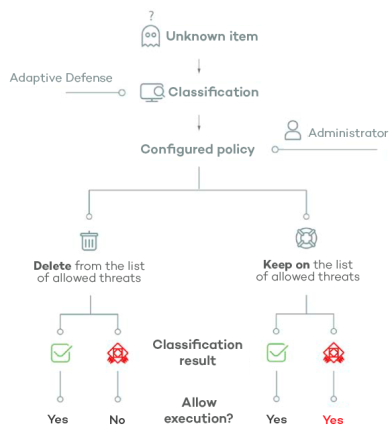
Changing the reclassification policy
The reclassification policy applies to all devices on the network. The assigned security settings profiles do not impact the reclassification policy.
To change the actions that Advanced EDR takes when a file is reclassified:
-
From the top menu, select Status. From the side menu, select, select Security.
-
In the Programs allowed by the administrator pane, select the item type:
-
Click Change behavior. A dialog box opens. Select the action you want to apply.
-
Remove it from the list of programs allowed by the administrator: If the unknown file is goodware, then it continues to run normally. If it is malware, the exclusion is removed automatically and the file is blocked, unless the administrator creates an exclusion for the file.
-
Keep it on the list of programs allowed by the administrator: A red warning in the Programs allowed by the administrator list indicates that this option could lead to potentially dangerous exposure. Whether the unknown file is classified as goodware or malware, the exclusion is maintained and the file continues to run.
-
We recommend that you do not use the Keep it on the list of programs allowed by the administrator setting, as it could open a security hole that enables malware to run on network devices.
Reclassification of unblocked files
If you selected Keep it on the list of programs allowed by the administrator for an item, you should enable alerts and review the history of allowed programs to know whether the security software reclassified it as malware and allowed it to run.
History of allowed programs
To view reclassification and other events for an unblocked file:
-
From the top menu, select Status. From the side menu, select Security.
-
Click the Currently blocked programs being classified panel.
-
Click View history of blocked items. The History of blocked programs list opens.
-
In the Search bar, enter the name of the threat. The Action column shows the types of events that occurred For more information, see History of Blocked Programs list.
Email alerts
For more information about email alerts, see Alerts.
You can receive an email alert every time an unknown file gets blocked. It is recommend that you configure alerts when a previously unblocked file is reclassified.
To enable email notifications when an unknown file is blocked: