Zero-Trust Application Service
The Zero-Trust Application Service monitors all processes that run on user computers and sends the collected telemetry to the Cytomic cloud. This information is integrated into the analysis processes, which provide an unambiguous classification for all files seen on the IT network. With this technology, Advanced EDR identifies unknown malware and advanced threats, removing the "Unknown" category.
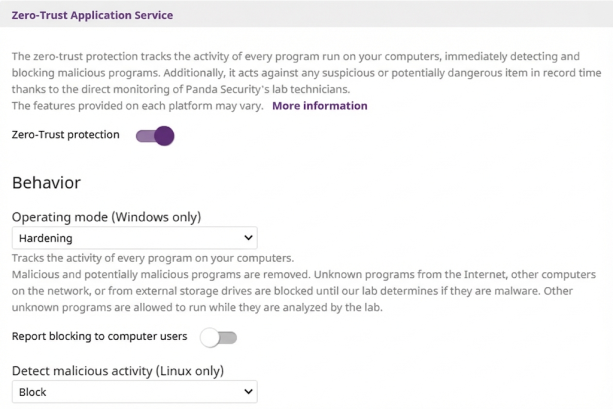
To configure the Zero-Trust Application Service:
-
Select Zero-Trust Application Service to expand the panel.
-
From the Operating mode (Windows only) drop-down list, select an option:
-
Learning: Unknown programs and detected threats are allowed to run. It reports known malware.
-
Hardening: Allows execution of unknown programs already installed on user computers. It blocks unknown programs that originate from an untrusted source (such as the Internet, external storage drives, or other computers on the network) until a classification is returned. It disinfects or deletes programs classified as malware.
-
Lock: Prevents execution of all unknown programs pending classification. It deletes or disinfects programs already classified as malware.
-
-
To notify computer users about programs blocked by the security software, enable the Report blocking to computer users toggle. The security software shows a pop-up notification every time:
-
The Zero-Trust Application Service blocks a file.
-
The Zero-Trust Application Service classifies a previously blocked file as goodware.
-
-
To add a custom message to the notifications that show on the computer, type a message in the Add the following custom message to alerts (optional) text box.
-
If you select Lock in Operating mode (Windows only), enable the toggle to Give computer users the option to run unknown blocked programs (recommended for advanced users and administrators only).
-
We do not recommend that you delegate the security of your IT network to computer users.
-
For Linux computers, from the Detect malicious activity (Linux only) drop-down list, select the action to take when the security software detects malicious activity:
-
Learning: Reports threats detected through contextual rules, but does not block them. It blocks or disinfects threats detected through other technologies.
-
Block: Reports and blocks threats detected through contextual rules. Select this option if you are sure the detected activity is a threat.
-
Do not detect: Malware detected through contextual rules is not detected or reported.
-