General settings
Select General to expand the panel. In this section, you can configure:
Local alerts
-
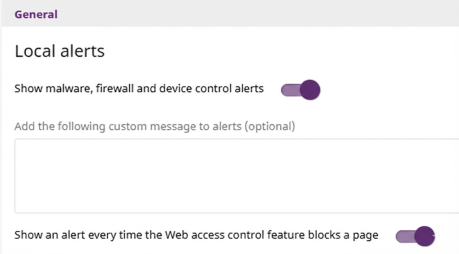
To Show malware, firewall, and device control alerts on protected computers and devices, enable the toggle. Advanced EDR shows the user a pop-up notification with the reason for the alert.
-
(Optional) In the text box, type a custom message to include in the alert.
-
To Show an alert every time the Web access control feature blocks a page, enable the toggle. This feature is available for computers with a Windows, macOS, or Linux operating system.
Updates
To update the agent, the security software, and the security software signature file, see Product updates and upgrades.
Uninstall other security products
See Protection deployment overview.
To view a list of the third-party security products that are automatically uninstalled by Advanced EDR, see Supported uninstallers.
Files and paths excluded from scans
This section enables you to disable protection for the specified files and file paths. We recommend that you only exclude files and paths to resolve performance problems.
By default, you cannot edit or delete the settings assigned by your service provider. If the service provider configured scan exclusions to be editable, the setting profile shows the label Editable exclusions. You can add exclusions, but you cannot delete or edit the list of exclusions defined by the service provider. If your service provider changes the status of the settings from editable to non-editable, the exclusions you added no longer apply. Only the exclusions from the service provider apply. If the service provider changes the configuration again to be editable, then the exclusions you previously added are restored and applied.
Excluded items do not send telemetry to the Cytomic cloud. To prevent the Zero-Trust Application Service from blocking trusted software and make sure that telemetry data continues to be sent to Cytomic, we recommend that you use the authorized software module instead of exclusions. For more information, see Authorized software settings.
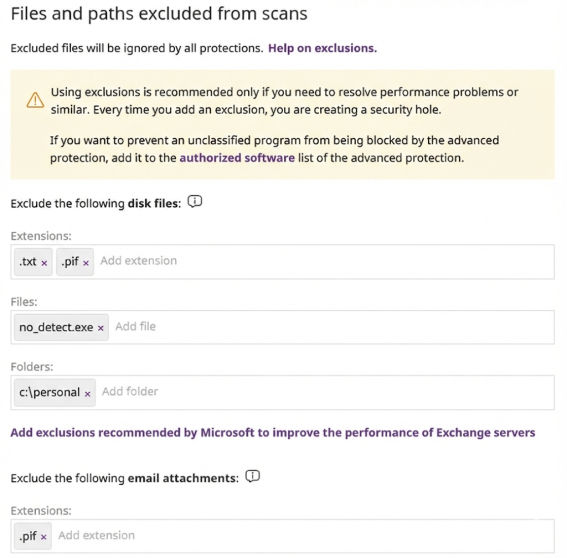
To configure scan exclusions:
-
In the Extensions text box, type file extensions and press Enter.
-
In the Files text box, type the names of the files to exclude. Press Enter. To use wildcards, see Using wildcards to exclude files.
-
In the Folders text box, type the paths of the folders to exclude. Press Enter. To use wildcards, see Using wildcards to exclude folders.
-
In the Extensions text box, type the file extensions for the email attachments to exclude. Press Enter.
Using wildcards to exclude files
We recommend that you limit the use of wildcards and substring matches as much as possible to minimize the number of files excluded from scans.
On Windows computers:
-
You can use wildcard characters ? and * when specifying file names only.
-
You cannot use wildcards when specifying the full path to a file.
-
If you do not specify the path to a file, the file is excluded from scans in all folders where it is located. If you specify the path, the file is excluded from scans only in that folder.
On Linux/macOS computers:
-
You cannot use wildcard characters ? or *.
-
If you do not specify the path to a file, the file is excluded from scans in all folders where it is located. If you specify the path, the file is excluded from scans only in that folder.
-
You can specify the partial name of a file.
Example: Excluding files on Windows computers
To exclude file C:\Users\mike\desktop\data.txt:
-
C:\Users\mike\desktop\data.txt(recommended). -
data.txt(not recommended; this excludes all data.txt files regardless of their path). -
C:\Users\mike\desktop\data.*(wrong; you cannot use wildcards when specifying the full path to a file).
Example: Excluding files on Linux/macOS computers
To exclude file /home/mike/data.txt:
-
/home/mike/data.txt(recommended). -
/home/mike/*.txt(wrong; you cannot use wildcards). -
mik(not recommended; this excludes all files whose name or path contains themiksubstring).
Using wildcards to exclude folders
On Windows computers:
-
You can use system and user variables.
-
You cannot use user-created variables.
-
You cannot use wildcards.
On Linux/macOS computers:
-
You cannot use system or user variables.
-
You can specify the partial path of a file.
Example: Excluding paths on Windows computers
To exclude folder C:\Users\mike\desktop\:
-
C:\Users\mike\desktop\(recommended). -
C:\Users\%USERNAME%\desktop\(excludes the desktop folder for all users of the computer). -
C:\Users\*\desktop\(wrong; you cannot use wildcards when specifying paths).
Example: Excluding folders on Linux/macOS computers
To exclude folder /home/mike/:
-
/home/mike/(recommended). -
/home/$USER/(wrong; you cannot use environment variables).
Privacy
The security software collects the name and full path of the files it sends to the Cytomic cloud for analysis, as well as the name of the logged-in user. This information is used in the reports and forensic analysis tools shown in the web console.
To enable data collection, in the Privacy section, enable the toggles:
-
Collect and show in the console the name and full path of the data files accessed by malicious programs.
-
Collect and show in the console the user that is logged in at the time threats are detected on computers.
Network usage
Advanced EDR sends every unknown executable file found on user computers to the Cytomic cloud for analysis.
Advanced EDR is configured so that it has no impact on the customer’s network bandwidth:
-
Advanced EDR only sends a compressed file up to 50 MB to the Cytomic cloud each hour for each computer.
-
The Cytomic agent sends each unknown file once only for all customers who use Advanced EDR.
-
Advanced EDR implements bandwidth management mechanisms to prevent intensive usage of network resources.
In the Maximum number of MBs that can be transferred in an hour text box, type the maximum number of MB to transfer between the computers and devices on your network and the Cytomic cloud.
To remove the limit, set the value to 0.