Assigning settings profiles manually and automatically
After you create a settings profile, there are two ways to assign it to one or more computers:
-
Manually (directly).
-
Automatically (indirectly) through inheritance from a group to subgroups, computers, and devices.
Both strategies complement each other. It is highly advisable that you understand the advantages and limitations of each one to define the most simple and flexible computer structure possible to minimize the workload of daily maintenance tasks.
Assigning settings profiles manually (directly)
You can assign settings profiles to computers and groups directly. In this case, you, as the administrator, manually assign the profile to a computer or computer group.
After you create a settings profile, there are many ways to manually assign it:
-
From the Computers menu at the top of the console (through the group tree in the left panel).
-
From the Computers menu at the top of the console (through the target computer details page).
-
From the profile, when it is created or edited.
For more information about the group tree, see Group tree.
Assigning a settings profile from the group tree
To assign a settings profile to a computer group:
-
From the top menu, select Computers. From the left panel, select a filter or group.
-
Click the context menu for the group.
-
Select Settings. A dialog box opens and shows the profiles assigned to the selected group and the type of assignment:
-
Manual/Direct assignment: The Assigned directly to this group text shows.
-
Inherited/Indirect assignment: The Settings inherited from text shows, followed by the name and full path of the group the settings profile is inherited from.
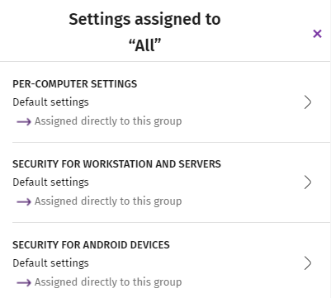
Select one of the available types of settings profiles. Select the profile you want to apply. Click OK. The profile is immediately deployed to all members of the group and its subgroups.
Assigning a settings profile from the Computers list
To assign a settings profile to a specific computer or device:
-
From the top menu, select Computers. From the left panel, select the filter or group that contains the computer you want to assign the profile to. From the list of computers, select the computer. The computer details page opens.
-
Select the Settings tab. A dialog box opens and shows the profiles assigned to the selected computer and the type of assignment:
-
Manual/Direct assignment: The Assigned directly to this group text shows.
-
Inherited/Indirect assignment: The Settings inherited from text shows, followed by the name and full path of the group the settings profile is inherited from.
-
-
Select one of the available types of settings profiles. Select the profile you want to apply. Click OK. The profile is immediately applied to the computer.
Assigning a settings profile from the profile
-
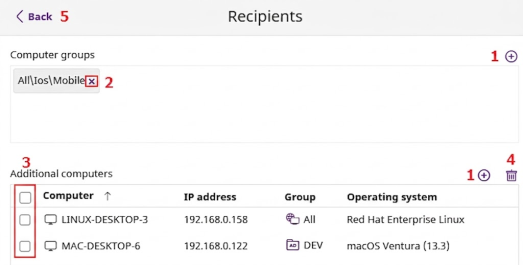
Click the profile recipients or, if there are no recipients, click No recipients selected. The Recipients page opens. This page is divided into two sections: Computer groups and Additional computers.
-
Click the
 buttons (1) to assign the settings profile to a single computer or device or to a computer group.
 -
To remove a computer group from the settings profile, click the
 icon next to the group name.
 -
To remove a computer or device:
-
Select the checkboxes (3) for the computers you want to remove.
-
Click
 (4). The computers are removed from the settings profile.
-
-
Click the Back link (5). The profile is assigned to the selected computers.
If you remove a computer from the list of computers assigned to a settings profile, it re-inherits the settings profile from the group it belongs to. A warning message appears in the management console before the computer is removed and the changes are applied.
Assigning settings profiles indirectly: The two rules of inheritance
Indirect assignment of settings profiles takes place through inheritance, which enables automatic deployment of a settings profile to all computers below the node to which the settings were initially assigned.
The following is a description of the rules that govern the interaction between the two ways of assigning profiles (manual/direct and automatic/inheritance):
Automatic inheritance rule
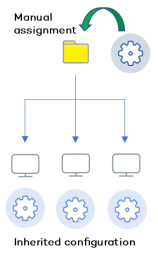
A computer or computer group automatically inherits the settings of its parent group (the group above it in the hierarchy).
The settings are manually assigned to the parent group and are automatically deployed to all child nodes (computers and computer groups with computers inside).
Manual priority rule
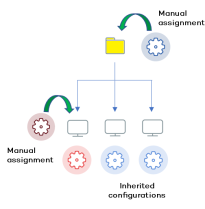
Manually assigned settings take precedence over inherited settings.
When you manually assign a new settings profile to a group, all computers and devices below that group use the manually assigned settings, not the inherited or default ones.
Inheritance limits
Manually assigned settings override inherited settings from the higher-level group. That is, settings assigned to a group (manual or inherited) apply to all subgroups, computers, and devices unless manually assigned settings apply.
When the solution encounters manually assigned settings, that group and all of its subgroups, computers, and devices receive the manually assigned settings and not the original inherited ones.
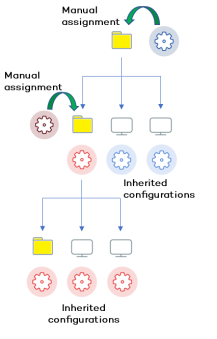
Overwriting settings
Manually assigned settings take precedence over inherited settings. When you manually assign a new settings profile to a group, all computers and devices below that group use the manually assigned settings, not the inherited or default ones.
Bearing that in mind, changes you make to settings in a higher-level group affect the groups, computers, and devices that inherit the settings differently, based on whether they have existing manually assigned or inherited settings. There are two scenarios:
-
Subgroups and computers with no manually assigned settings: When you change settings in a group that are inherited by subgroups and computers that have no manual settings applied, the new settings automatically apply to all subgroups, computers, and devices in the group.
-
Subgroups and computers with manually assigned settings: When you change settings in a group that are inherited by subgroups and computers that have manually assigned settings applied, any subgroups or computers with manually assigned settings do not inherit the new settings, regardless of the level.
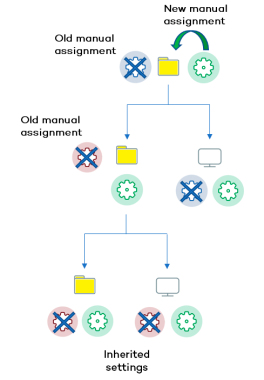
The solution prompts you to specify whether to inherit the settings or keep the manually assigned settings.
Make all inherit these settings
Be careful when you choose this option as this action is irreversible! When you select this option, all manually assigned settings below the parent node are removed and all groups and computers inherit the new settings. The way Advanced EPDR behaves might change on many computers on the network.
The new directly assigned settings propagate through inheritance across the entire tree, overwriting the previously assigned settings up to the last-level child nodes.
Keep all settings
When you select this option, new settings apply only to groups and computers that do not have manually assigned settings.
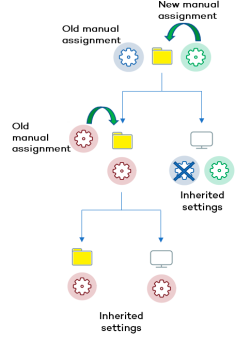
Existing manual settings are retained and the application of new inherited settings stops at the first group or computer with existing manually configured settings.
Removing manually assigned settings and restoring inheritance
To restore inheritance to a group or computer with manually assigned settings, you must remove the manually assigned settings:
-
From the top menu, select Computers. From the left panel, find the group with manually assigned settings that you want to remove.
-
Click the context menu icon for the group and select Settings. A dialog box opens and shows the profiles assigned to the group. Select the settings type that you want to restore inheritance for.
-
A list opens and shows all available settings profiles, as well as the Inherit from parent group button. Click Inherit from parent group. The manually assigned settings are removed. The group inherits profile settings from the specified group.
Moving groups and computers
When you move computers from one branch in the tree to another, the way Advanced EPDR operates with respect to the settings profile to apply varies depending on whether the items moved are groups or individual computers.
Moving individual computers
All settings profiles that were manually assigned to the computer are retained. Inherited profiles are overwritten with the settings established in the new parent group.
Moving groups
A dialog box opens and shows this question: “Do you want the settings inherited by this group to be replaced by those in the new parent group?”
-
If the answer is YES, the process is the same as when you move a single computer: The manually assigned settings are retained and the inherited settings are overwritten with those established in the parent node.
-
If the answer is NO, both the manually assigned settings and the inherited settings of the group are retained.
Exceptions to indirect inheritance
All computers that are included in a native group in the web console automatically receive, from Advanced EPDR, the network settings assigned to the target group by means of the standard indirect assignment/inheritance mechanism. However, if a computer is a member of an Active Directory or IP-based group, you must manually assign network settings. Additionally, if you move a computer from an Active Directory or IP-based group to another group, it does not automatically inherit the network settings assigned to the target group.
This particular behavior of the inheritance feature is due to the fact that, in midsized and large companies, the department that manages security might not be the same as the department that manages the company Active Directory. Therefore, a group membership change made by the technical department that maintains Active Directory could inadvertently change network settings in the Advanced EPDR console and leave the protection agent installed on the affected computer without connectivity and full protection. To prevent settings changes when a computer changes groups in the Advanced EPDR console because of a group change in Active Directory, you must manually assign network settings.