Downloading patches manually
Cytomic Patch cannot get the download URL if the patch is protected by a EULA, or is a paid or private patch. In such cases, download the patches manually and integrate them in the web console.
You cannot download patches manually on Linux or macOS computers or devices.
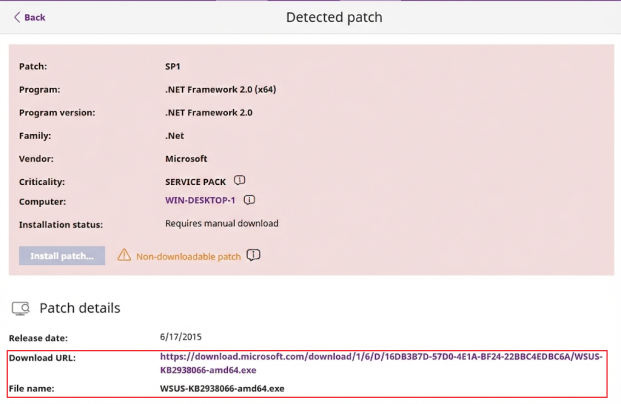
To download a patch manually:
-
From the top menu, select Status.
-
Go to My lists in the side menu. Click the Add link. The Add list dialog box opens.
-
In Patch management, select the Available patches list.
-
In the Available patches list, click Filters. From the Show non-downloadable patches drop-down list, select Yes.
-
Click Launch query. The list shows all patches that Cytomic Patch cannot download automatically.
-
Select a patch. The Detected patch page opens.
-
If Cytomic Patch can access the URL:
-
Click the Download URL link. The patch is downloaded on the computer.
-
Note the exact file name shown in the Patch details section.
-
-
If Cytomic Patch cannot access the download URL, go to the vendor website to download the patch.
-
Copy the downloaded file to this path on the cache computer:
C:\ProgramData\PandaSecurity\Panda Aether Agent\Repository\ManuallyDeplo.
If you installed the security software on a computer drive that differs from the default installation drive, copy the file to:
X:\PandaSecurity\Panda Aether Agent\Repository\ManuallyDeploy,
where X is the drive where the repository is located. See Specifying the storage drive.
-
If the ManuallyDeploy folder does not exist, create it with read and write administrator permissions.
-
If needed, rename the downloaded file to match the file name shown in the Patch details section.
-
In the Available patches list, select the checkbox next to the patch you have manually downloaded. A toolbar appears.
-
Select Mark as “Manually downloaded”
 . After you mark a patch as manually downloaded, its status changes from Requires manual download to Available (manually downloaded) for all computers that need to install it and the patch can be installed like an automatically downloaded patch.
Cytomic Patch does not check whether there are patches with the Available(manually downloaded) status on cache computers, or whether computers on the network that require a patch have a cache computer assigned that has the patch in its repository. You must make sure that cache computers used for patch downloads have all necessary manually downloaded files in the ManuallyDeploy folder .
Disabling a manually downloaded patch for installation
If you no longer want a manually downloaded patch to be available to install, you can disable the patch for installation. To disable a manually downloaded patch for installation:
-
From the top menu, select Status.
-
Go to My lists in the side menu. Click the Add link. The Add list dialog box opens.
-
In Patch management, select the Available patches list.
-
In the Available patches list, click Filters. From the Show non-downloadable patches drop-down list, select Yes.
-
Click Launch query. The list shows all patches that Cytomic Patch cannot download automatically.
-
Select the manually downloaded patch. A toolbar appears.
-
Select Mark as “Requires manual download”
 . The patch is removed from the repository of installable patches, and you cannot install it.