Antivirus protection
Configure the behavior of the signature-based antivirus engine. When Advanced EPDR detects malware or the Cytomic anti-malware laboratory identifies a suspicious file, Advanced EPDR takes one of these actions:
-
Known malware files when disinfection is possible: Replaces the infected file with a clean copy.
-
Known malware files when disinfection is not possible: Makes a copy of the infected file and deletes the original file. See Managing threats, items in the process of classification, and quarantine.
To configure antivirus settings:
-
Select Antivirus to expand the panel.
-
To configure the general behavior of the antivirus engine, see Configuring antivirus engine.
-
To configure the types of threats to detect, see Configuring threats to detect.
-
To configure AMSI, see Configuring AMSI.
-
To configure the types of files the antivirus engine must scan, see Configuring file types to scan.
Configuring antivirus engine
To configure the signature-based engine:
-
To enable virus scanning of the file system, enable the File antivirus toggle.
-
To enable virus scanning for email applications, enable the Email antivirus toggle. Advanced EPDR detects threats received over the POP3 protocol.
-
To enable virus scanning on web browsers to detect threats received over HTTP and HTTPS protocols and encrypted variants, enable the Web browsing antivirus toggle.
Configuring threats to detect
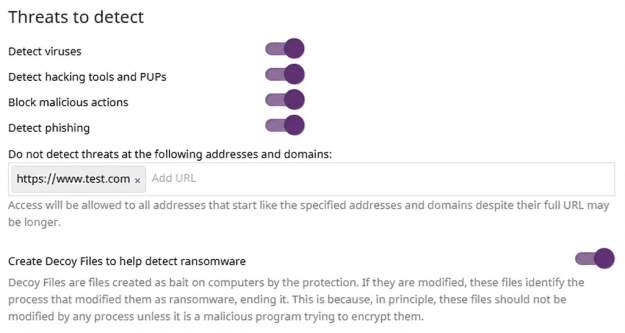
To configure the types of threats that Advanced EPDR searches for and removes:
-
To detect files that contain patterns classified as dangerous, enable the Detect viruses toggle.
-
To detect unwanted programs (such as programs with intrusive ads and browser toolbars) and tools used by hackers to gain access to your system, enable the Detect hacking tools and PUPs toggle.
-
To enable anti-exploit and heuristic technologies that analyze process behavior locally and detect suspicious activity, enable the Block malicious actions toggle.
-
To detect fraudulent emails and websites, enable the Detect phishing toggle.
-
If you enable Detect phishing, in the Do not detect threats at the following addresses and domains text box, type IP addresses and domains you want to exclude from phishing scans, separated by commas, and press Enter. This text box is not case-sensitive. Access is allowed to all addresses that start with the specified IP addresses and domains, even if the full URL is longer.
-
To create decoy files on user computers, enable Create decoy files to help detect ransomware. Decoy files are used as bait on computers. When there is an attempt to modify a decoy file, Advanced EPDR identifies the process as ransomware and ends the process. If the attempt comes from a remote computer, the security software blocks communications with that computer for one hour.
Configuring AMSI
The Windows Anti-Malware Scan Interface (AMSI) is a versatile interface standard that allows your programs and services to integrate with any antivirus product that is present on a computer to protect against obfuscation or fileless attacks (threats that live only in the memory of a computer). For more information, see https://learn.microsoft.com/es-es/windows/win32/amsi/antimalware-scan-interface-portal.
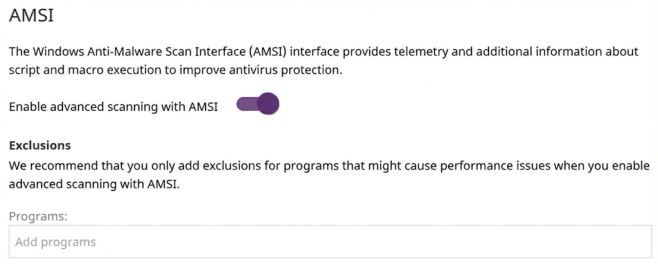
To enable advanced scanning of programs that use Windows Anti-Malware Scan Interface (AMSI):
-
Enable the Enable advanced scanning with AMSI toggle.
-
To exclude scanning of programs that use AMSI and might cause performance issues, in the Programs text box, type the name of the programs and press Enter.
Configuring file types to scan
Specify the types of files to be scanned by the antivirus engine:
-
To scan compressed files in emails, enable the toggle.
-
To scan compressed files on disk, enable the toggle. This option decompresses compressed files and scans their contents for malware. For the best performance, we recommend that you do not scan all compressed files on disk.
-
Also, for best performance and to avoid scanning data files that do not pose a threat to the security of computer networks, make sure the Scan all files regardless of their extension when they are created or modified toggle is disabled.