Scheduling and managing reports and lists
Sending reports and lists
From the Scheduled Reports section
-
From the top menu, select Status.
-
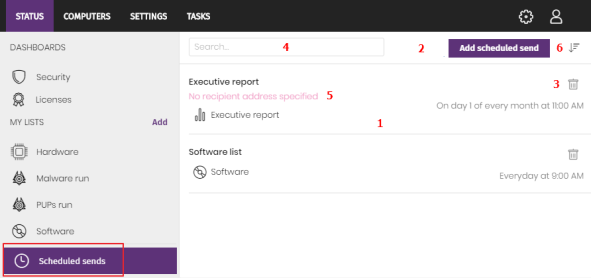
Select Scheduled reports, A page opens and shows a list of all scheduled reports and the tools required to create, edit, delete, or filter report sending tasks.
From the side menu
-
From the top menu, select Status.
-
In the My Lists section, click the
 icon for the list you want to send. A context menu opens.
 -
Select Schedule report
 . The Add scheduled report dialog box opens.
From a list view
-
From the top menu, select Status.
-
In the My Lists section, click the list view.
-
In the toolbar, click the
 icon in the upper-right corner. The Add scheduled report dialog box opens.
From a filter
-
From the top menu, select Computers.
-
From the side panel, select the
 tab. The filter tree appears.
 -
When you click a filter, the list of devices updates to show the devices whose characteristics meet the conditions of the selected filter.
-
Click the context menu icon
for the filter. A drop-down menu appears. -
Select Schedule report. The Add scheduled report dialog box opens.
Creating and managing reports
Scheduling a report
-
From the top menu, select Status. From the side menu, select Scheduled reports.
-
Click Add scheduled report (2). The Add scheduled report dialog box opens.
-
In the Name text box, type a name for the report.
-
In the Send automatically section, select the frequency and time for the scheduled report.
-
In the Report type field, click the existing report type to select a different report, list, or filter for your report.
-
For some reports, you can select a Summary report or Full report. See Contents of reports and lists.
-
If you selected an executive report, from the Dates drop-down menu, select the dates for the scheduled report. In the case of lists and filters, the report is generated immediately, so the information shown reflects the security status when the report is generated. For Zero-Trust Application Service reports, the report shows data for the last 30 days.
-
If you selected an executive report, click Computers to select specific groups of computers to include in the report. For any other type, the report includes data for all computers visible to the account that last modified the report schedule. See Managing roles and permissions
-
If you selected an executive report, click Content to select specific content for your scheduled report. See Contents of reports and lists.
-
In the To text box, type the email addresses to receive the reports, separated by commas.
-
In the CC text box, type the email addresses to copy, separated by commas.
-
In the BCC text box, type the hidden email addresses to copy, separated by commas.
-
In the Subject text box, type a subject for your email.
-
For the Format of your report, from the drop-down menu, you can select CSV, PDF, Word, or Excel formats. Not all report types support all format types. See Contents of reports and lists.
-
From the Language drop-down menu, select a language for the report.
-
The Preview report option is only displayed when the Executive report is selected. This link opens a new tab in your browser and contains the contents of the report to view before you schedule it to be sent, downloaded, or printed.
-
Click Add. The web console adds the report to the list of scheduled reports. If any information is missing, a warning message appears (5).. When the conditions specified in the settings are met, Advanced EPDR generates and sends the report to the specified email addresses.
Sorting scheduled reports
To sort your scheduled reports, select Scheduled reports and click  (6):
(6):
-
Sorted by creation date
-
Sorted by name
-
Ascending
-
Descending
Deleting and editing scheduled reports
-
To delete a scheduled report, click
 (3) next to the report you want to delete.
 -
To edit a scheduled report, select it.
To delete a list view or a list filter, make sure it does not have a scheduled report associated with it.
When you modify the settings of a list or a filter that has a scheduled report associated with it, the report content updates based on the new settings.