Configure Criteria for Signal Assignment Rules
When you create an assignment rule, Cytomic Orion configures it as restrictively as possible from the signal you select.
When an assignment rule has multiple criteria configured, it applies the logical operator AND between the criteria so that only signals that meet all conditions are assigned to the relevant investigation.
To add or remove a criterion from an assignment rule:
-
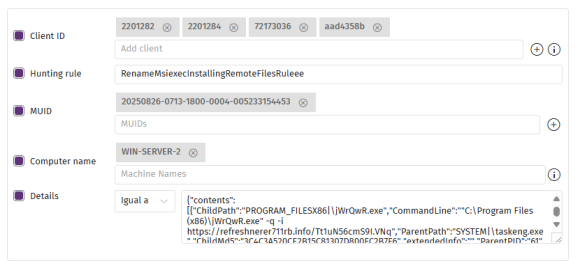
Select the check box for the criterion (1). For more information about the available criteria, see Rule Criteria.
-
To add items to a criterion, see Add Items to Criteria
-
To remove items from a criterion, see Delete Items from Criteria.
-
To specify criteria for rule details, see Add Criteria for Rule Details.
Rule Criteria
-
Client ID: Identifiers of the clients associated with the signals. All rules must have at least one associated client.
-
Hunting rule: Name of the hunting rule that generated the signals.
-
MUID: Identifiers of the computers where the signals are found.
Add Items to Criteria
To add items to criteria with the drop-down lists:
-
Select a drop-down list (2). A list opens that shows the available items.
-
Select an item. The item is added to the list for the criterion (3).
To add multiple items to a criterion simultaneously:
-
Click the
icon (4) for the criterion. A dialog box opens that shows a list of items.
-
To filter the list, in the Search text box, type part of an item name. The list shows the items that partially match the text you typed.
-
Select the check boxes for the items you want to add.
-
Click Add. The items are added to the criterion (3).
To manually add an item to a criterion:
-
In the text box for the criterion, type the text for the item.
-
Press Enter. The item is added to the list for the criterion (3).
Delete Items from Criteria
Click the 
Add Criteria for Rule Details
The criteria shown in the Details section for a rule vary depending on the signal details.
When a rule has multiple criteria selected in the Details section, it applies the logical operator AND between the criteria so that only signals that meet all conditions are deleted.
For example, for an IOA signal with these fields on the Details tab:
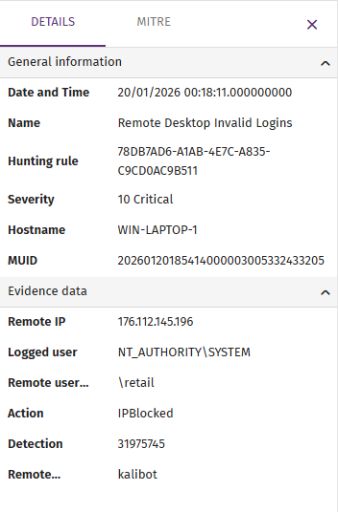
The criteria shown in the Details section for the rule are:
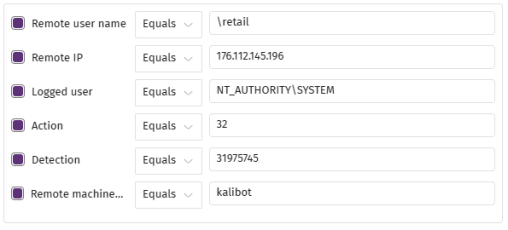
To configure criteria in the Details section:
-
Select the check box next to Details. All the criteria in the Detailssection are selected.
-
Select the check box for the criterion you want to configure. You can edit the criterion controls.
-
From the drop-down list, select how the rule must interpret the text box content:
-
Select Equals to specify the exact content of the field.
-
Select RegEx to specify the content of the field more flexibly using a regular expression. For more information, see Configure a Regular Expression.
-
Configure a Regular Expression
For more information about the syntax used in regular expressions, see https://docs.microsoft.com/en-us/dotnet/standard/base-types/regular-expression-language-quick-reference .
To test the regular expressions you write, see http://regexstorm.net/tester.
Cytomic Orion supports RegEx C for the flexible patterns entered in the Detailssection criteria. To write a valid regular expression, use a backslash (\) to escape special characters or characters specific to RegEx C.
When you select RegEx, a preview panel appears that enables you to verify whether the patterns you want to search for match the regular expression you wrote.
Example of a Details Section Criterion with Regular Expressions
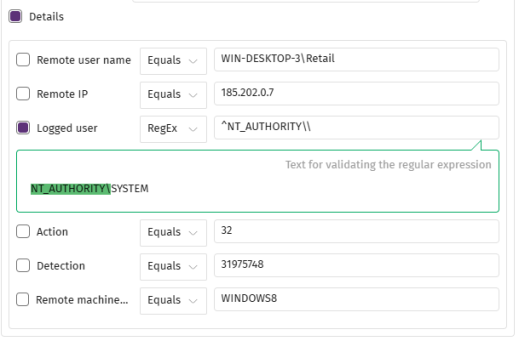
To find all users who logged in with an account starting with "NT_AUTHORITY":
-
Select the check box next to Details. A list opens that shows the available criteria for signals.
-
Select the check box for the Logged-in user criterion.
-
Click the drop-down menu (1).
-
Select RegEx. A preview panel appears (2) where you can verify the regular expression you write.
-
In the text box for the Logged-in user criterion, type "^NT_AUTHORITY\\"
-
^: Indicates the beginning of the string.
-
\: Escapes the ("\") character that follows it.
-
-
Make sure that only the Logged-in user criterion is selected.
-
Verify the preview panel highlights the fixed part of the regular expression in green.