Signals List
By default, the Signals list shows the signals detected in the last 24 hours on all computers in your clients’ accounts that are visible to your Cytomic Orion user account. See Client Visibility Settings.
Use the Signals list to:
-
Assign signals to investigations. See Assign Signals to Investigations.
-
Remove signals that you determine to be false positives or unimportant. See Delete Signals.
-
View information for signals. See View Information for Signals.
To avoid overly long lists, Cytomic Orion automatically groups together repeated signals. See Signal Grouping
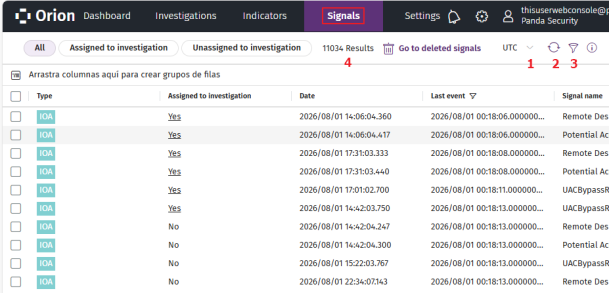
To view the signals detected by the cyberattack radar:
-
From the top menu, select Signals. A list opens that shows all signals detected in the last 24 hours.
-
To modify the list view and quickly find signals of your interest, see List Configuration Tools.
-
To change the time interval for the signals in the list:
-
Click the
icon (3). The Signals panel appears.
-
From the drop-down list, select a time interval (Last 24 hours or Last 7 days) for the signals you want to show in the list.
-
To specify a time interval, select Custom. Enter a start date and an end date, and select a time zone.
-
Click Apply. The signal list and counter (4) update automatically.
-
-
To show only signals assigned to investigations, click Assigned to investigation (5).
-
To show only signals not assigned to any investigations, click Unassigned to investigation (6).
-
For more information about the columns in the list, see Fields in the Signals List.
-
To view detailed telemetry for a signal:
-
Select a signal. A panel appears at the right side of the page.
-
Select the DETAILS tab. See View Information for Signals.
-
-
To show MITRE information for a signal:
-
Select a signal. A panel appears at the right side of the page.
-
Select the MITRE tab. See MITRE Information for a Signal.
-
-
To delete signals, see Delete Signals.
-
To move or add signals to an investigation, see Assign Signals to Investigations
Fields in the Signals List
| Field | Description |
|---|---|
|
Assigned to investigation |
|
|
ChildFileName |
See childfilename |
|
ChildFilePath |
See childpath |
|
CommandLine |
See commandline. |
|
Computer |
Name of the client’s computer related to the signal. |
|
Date |
Date when the cyberattack radar generated the signal. |
|
Client ID |
Unique identifier of the client the computer related to the signal belongs to. |
| LoggedUser |
See loggeduser. |
|
MITRE |
MITRE tactic, technique, and sub-technique associated with the hunting rule that generated the signal. If there is more than one tactic and technique pair, they are separated with the ''.” character. See MITRE Information for a Signal. |
|
MUID |
Unique identifier of the client’s computer related to the signal. |
|
Signal name |
Name of the signal. The name of the signal is the same as the name of the hunting rule that the cyberattack radar used to generate the signal. |
|
Occurrences |
Number of times Cytomic Orion detected the same type of signal repeatedly on the same computer. See Signal Grouping |
|
ParentFileName |
See parentfilename |
|
ParentFilePath |
See parentpath. |
|
ProcessTreeID |
See processtreeid |
|
RemoteIP |
See remoteip |
|
RemoteMachineName |
See remotemachinename |
|
Risk |
Severity of the signal:
|
|
SessionID |
See sessionid. |
|
Operating systems |
Operating systems where the hunting rule monitors telemetry for suspicious patterns. |
|
ThreadID |
See threadid. |
|
Type |
Signal type:
|
|
Last event |
Date when the last event that led to the generation of the signal was logged on the computer. |
Signal Grouping
To prevent too many records in lists, Cytomic Orion groups repeated signals in different ways, depending on the technology used in the detection:
-
Local security software: Logs the first signal and sets the Occurrences to 1. Then, it updates the field every hour to indicate the total number of detected signals.
-
Server (hunting rules): Logs the first signal and sets the Occurrences to 1. Then, it updates the field every 6 hours to indicate the total number of detected signals.
Related Investigations List
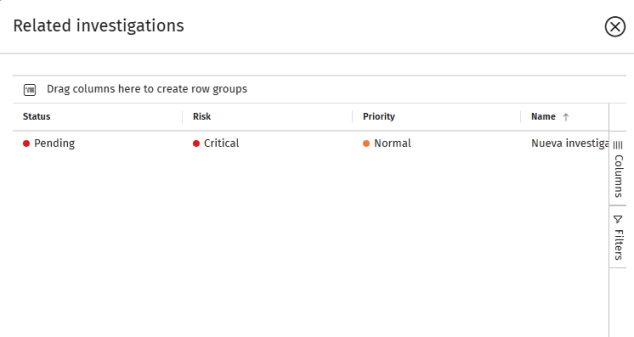
This list shows all investigations assigned to a signal.
-
To modify the list view and quickly find investigations of your interest, see List Configuration Tools.
-
For more information about the fields in the list, see Fields in the Related Investigations List.
Fields in the Related Investigations List
| Field | Description |
|---|---|
|
Assigned to |
The user account assigned to the investigation. |
|
Classification |
The investigation classification based on the category of the malicious activity detected. |
|
Clients |
A comma-separated list of the clients associated with the investigation. |
|
Created by |
The user account that created the investigation. |
|
Description |
The investigation description. |
|
Status |
The current phase of the investigation. See Fields in the Investigations List. |
|
Creation date |
The date when the investigation was created. |
|
Incidents |
The total number of incidents in the investigation. |
|
Name |
The investigation name. |
|
Priority |
The priority level of the investigation. |
|
Risk |
The severity of the threat impact. |
|
Signals |
The number of signals included in the investigation. |
| Fields in the Investigations list | |
MITRE Information for a Signal
The MITRE panel shows information about the MITRE tactic and technique associated with the hunting rule that generated the signal. If the hunting rule is associated with more than one technique, the MITRE panel groups the information in various drop-down tabs, one for each technique. The information shown on the MITRE tab is gathered from the official source at https://attack.mitre.org/matrices/enterprise/
| Field | Description |
|---|---|
|
Tactic |
Name of the attack tactic related to the hunting rule that generated the signal, mapped to the MITRE matrix. Tactics are identified by a character string in the TAXXXX format. |
|
Technique |
Name of the attack technique related to the hunting rule that generated the signal, mapped to the MITRE matrix. Techniques are identified by a character string in the TXXXX format. |
|
Sub-technique |
Name of the attack sub-technique related to the hunting rule that generated the signal, mapped to the MITRE matrix. Sub-techniques are identified by a character string in the TXXXX.YYY format. |
|
Platform |
Operating system and environments where MITRE previously recorded this type of attack. |
|
Required permissions |
Permissions required to run the attack. |
|
Description |
Details of the tactics and techniques used in the attack, according to the MITRE matrix. |
View Information for Signals
To view detailed information about a signal:
-
From the top menu, select Signals. A list opens that shows all signals detected in the last 24 hours.
-
Select a signal. A side panel opens. The Details tab could include this information:
-
General information: Information includes the computer the signal was detected on, the date and time of detection, and whether it accessed data or communicated externally.
-
Threat details: Information for signals generated from detection of malware, PUPs, exploits, vulnerable drivers, and other attacks.
-
Related event: Information about events that led to the generation of the signal.
-
Reclassification information: Information about classification of an unknown item.
-
Evidence data: Information about the context in which the signal occurred.
-
Exploit information: Information about the context in which an exploit attack was detected.
-
Network attack information: Information about the remote computer that carried out a network attack.
-
-
For more information about the fields in the details panel for a signal, see Fields in the Details Panel for a Signal.
Fields in the Details Panel for a Signal
These fields vary depending on the signal type.
| Field | Description |
|---|---|
|
General information |
|
|
Date and time |
Date and time when the signal was created. |
|
Name |
Signal name. |
|
Hunting rule |
Identifier of the hunting rule that Cytomic Orion used to detect the pattern of events that generated the signal. |
|
Severity |
|
|
Host name |
Name of the computer where the signal was detected. |
|
MUID |
Identifier of the computer where the signal was detected. |
|
Action |
Type of action taken by the Cytomic Orion agent, by the user, or by the affected process. See action. |
|
Technology |
Cytomic Orion agent technology that detected the signal. See winningtech. |
|
Configuration mode |
Agent execution mode. See servicelevel. |
|
Data access |
The process accessed files on the computer or the Windows registry. |
|
Communication |
The process communicated with an external device. |
|
Remote IP |
IP address of the remote computer. |
|
Remote machine name |
Name of the remote computer. |
|
Remote user name |
Name of the remote user account. |
|
Logged-in user |
Name of the user account that was logged in to the computer. |
|
Process tree ID |
Identifier of the process tree to which the signal belongs. |
|
Session ID |
Identifier of the session for the processes to which the signal belongs. |
|
Thread ID |
Identifier of the thread for the process to which the signal belongs. |
|
Threat details |
|
|
Threat name |
Name of the malware, if it was identified. |
|
Path |
Path of the file that contains the threat. |
|
File |
MD5 of the file that contains the threat. For static information about the file, click Show static information. See View Static Information for a File. |
|
Detection |
Internal identifier of the detection. |
|
Related event |
|
|
Event type |
|
|
Date and Time |
Date and time when the event was logged. |
|
Path |
Path of the file involved in the event. |
|
File |
MD5 of the file involved in the event. For static information about the file, click Show static information. See View Static Information for a File. |
|
Commandline |
Logged command line. |
|
Verified |
The item is safe (it is classified as goodware). |
|
Passive action |
The action is passive or active. |
|
Action |
Passive or active action logged by the process. See action. |
|
Reclassification information |
|
| MD5 |
MD5 of the reclassified file. For static information about the file, click Show static information. See View Static Information for a File. |
|
Import date |
Date when the file was sent to Cytomic for classification. |
|
Reclassification date |
Date when the classification process completed. |
|
Reclassified as |
Category of the reclassified item:
|
|
Detection |
Internal identifier of the detection. |
|
Malware type |
|
|
Network attack information |
|
|
Source IP address |
IP address of the computer that launched the network attack. |
|
Source port |
Port from which the computer launched the network attack. |
|
Target IP address |
IP address of the computer that received the network attack. |
|
Target port |
Port on which the network attack was detected. |
|
Occurrences |
Number of detections of the same type of attack from the same source IP address within an hour. |
|
Detection |
Internal identifier of the detection. |
|
Evidence data |
|
| Parent file path |
Name and path of the parent file. |
| Parent file name | Name of the parent file. |
| Parent file MD5 | MD5 of the parent file. |
|
Parent PID |
Identifier of the parent process. |
| Child file path |
Name and path of the child file. |
| Child file name | Name of the child file. |
| Child file MD5 | MD5 of the child file. |
|
Child PID |
Identifier of the child process. |
|
Action |
|
| Logged-in user |
Name of the user account that was logged in to the computer. |
|
Commandline |
Command line ran by the process. |
|
Rule ID |
Internal identifier of the hunting rule that detected the signal. |
|
Rule type |
|
|
IOA ID |
Internal identifier of the indicator of attack |
|
Exploit information |
|
|
Exploit type |
Source of the attack:
|
|
URIs |
List of URLs accessed at the moment the web browser exploit was detected. |
|
Files |
List of files accessed at the moment the file exploit was detected. |
|
Version |
Content of the Version field of the file metadata. |
|
Vulnerable |
The application is classified as vulnerable. |
View Static Information for a File
The security software installed on user computers automatically sends the relevant files involved in the generation of signals to the Cytomic servers for analysis and classification.
If the Cytomic server does not complete the analysis of a file, the console prompts you to retry the operation in a few minutes.
To view static information for a file:
-
Click Show static information. A tab opens that shows these sections:
-
Header:
-
File name: Name and size of the file.
-
Signed: Indicates whether the file is digitally signed.
-
Company: Name of the company that created the file. It corresponds to the CompanyName field in the VERSION_INFO resource section of the file.
-
File version: Version of the file. It corresponds to the FileVersion field in the VERSION_INFO resource section of the file.
-
Description: Description of the file. It corresponds to the FileDescription field in the VERSION_INFO resource section of the file.
-
MD5: MD5 hash of the file.
-
Path: Path of the file.
-
Computer name: Name of the computer where the file was found.
-
Timestamp: Date and time when the file was run.
-
-
Selection menu:
-
File capabilities: Technique, tactic, and description of the file features.
-
Strings: Character strings found in the file.
-
Sections: Shows the different sections in the binary file. For more information, see https://learn.microsoft.com/en-us/archive/msdn-magazine/2002/february/inside-windows-win32-portable-executable-file-format-in-detail and https://learn.microsoft.com/en-us/archive/msdn-magazine/2002/march/inside-windows-an-in-depth-look-into-the-win32-portable-executable-file-format-part-2.
-
Imports: Functions the file imports in order to run.
-
Exports: Functions the file exports.
-
-